Parental Control
Screen time, web filtering and location — agreed with the child, not imposed on them
Two paired apps: KidSafe on the parent's phone, KidSafe Kids on the child's. The parent sets daily limits and a study–play–sleep schedule, filters the web and forces SafeSearch, and draws safe zones on a map. The child can ask for more time with a reason and earn minutes by finishing tasks — so the rules stay a conversation. Built for Vietnam: consent under Decree 13/2023, and alerts that point to helpline 111.
Key Features
Built with
How it works
The child's device does the enforcing, not the network: a local VPN service filters the web, accessibility and usage-access permissions see which app is in front, and device admin holds the lock. That is why a PIN can unlock the phone with no signal at all, and why the last known location still shows when the child turns location off. The parent's app is a remote control over that, not the thing doing the work.
How to use it
Parental Control
Every step, in the order you will meet them.
- 01Both devices
Pair the two devices
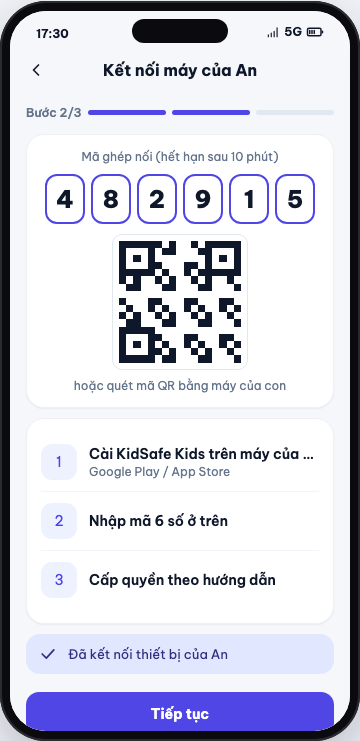
Create the parent account and agree to the child-data terms, then add the child: name, birth year, a colour. The app shows a 6-digit code and a QR valid for ten minutes. Install KidSafe Kids on the child's phone, enter the code, and grant the six permissions it asks for — usage data, accessibility, the web-filter VPN, location, device admin and notifications. Pick a rule template last; you can change every part of it afterwards.
Parent app 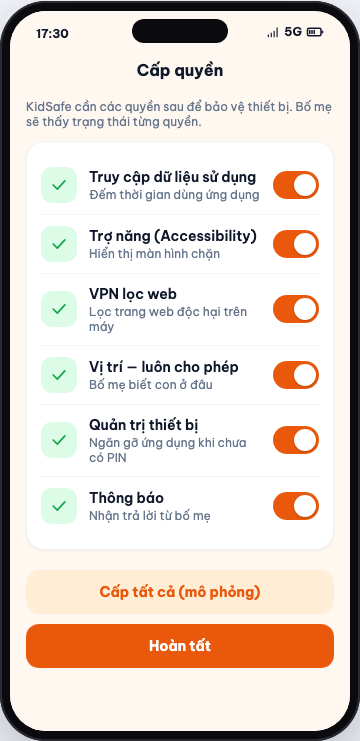
Child's device - 02Child's device
When time runs out, the child asks
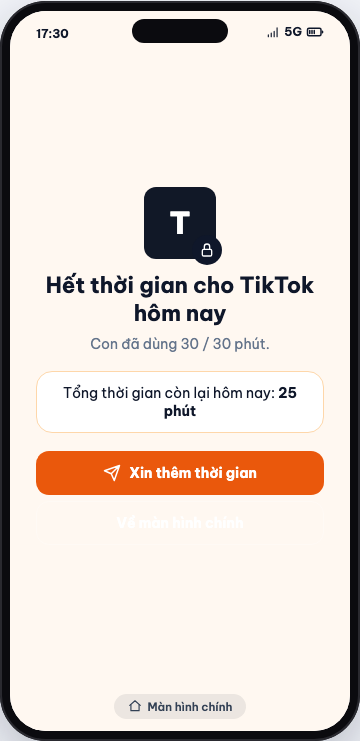
Once an app has used up its daily allowance a padlock appears on its icon, and opening it shows a block screen with a button to ask for more. The child picks how long, gives a reason and can add a note — up to three requests a day. The parent gets a push with Approve and Deny on the notification itself, or can open the request to see the reason, how much time is left and how many times the child has already asked today.
Child's device 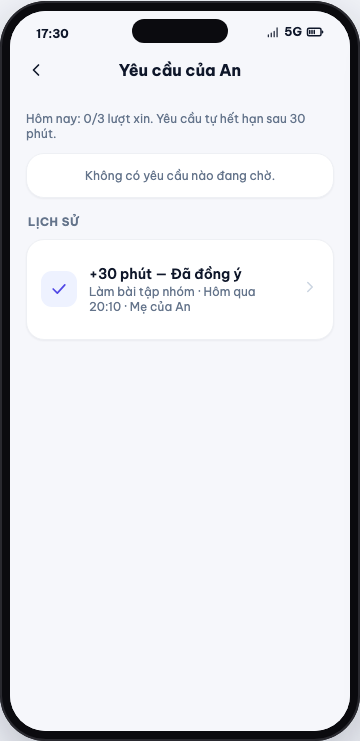
Parent app - 03Parent app
Lock it now, unlock it two ways
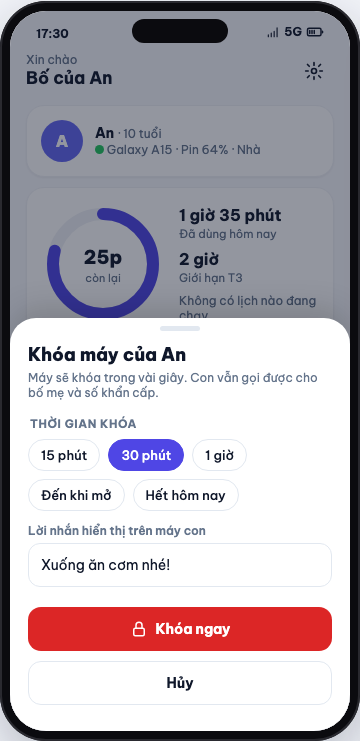
Dinner time: choose how long to lock for and the message the child will see. The device locks immediately, but calls to the parents and to emergency numbers still go through, and the child can still ask to be let back in. If you are standing next to them, type the PIN on their phone and it unlocks on the spot with no network at all. Otherwise unlock remotely from your own app.
Parent app 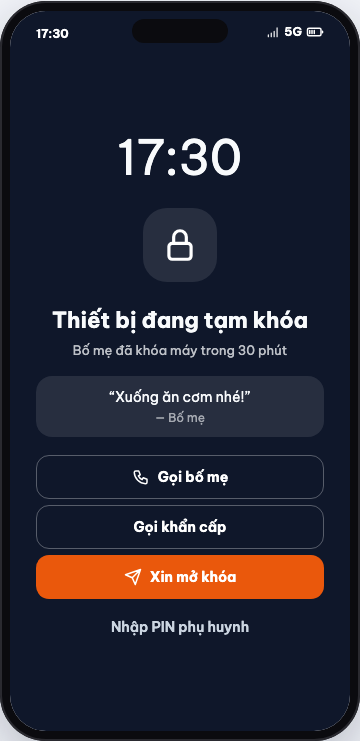
Child's device - 04Parent app
Filtering, and what it tells you
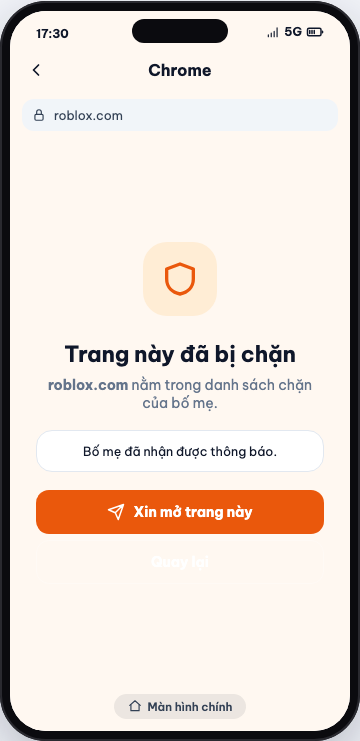
SafeSearch is forced on for Google, Bing and YouTube, and adult sites are blocked before the page loads — the parent gets a high-severity alert when that happens. A sensitive search, say for vaping, raises a softer alert instead of a block, and the alert opens with suggestions on how to talk about it and the number for helpline 111. Search history flags the terms that triggered it, and you can move the filter level or unblock a category at any time.
Child's device 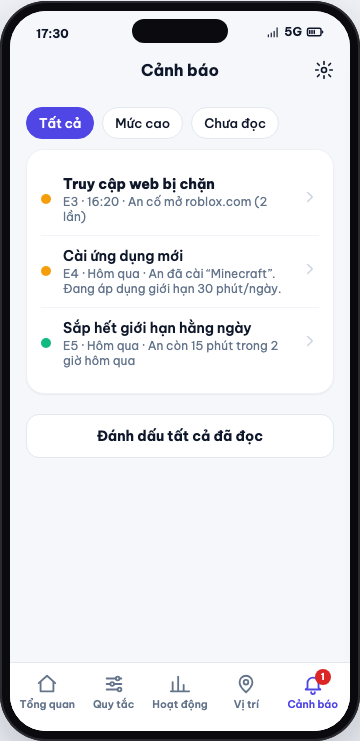
Parent app - 05Parent app
Where they are, and when that changes
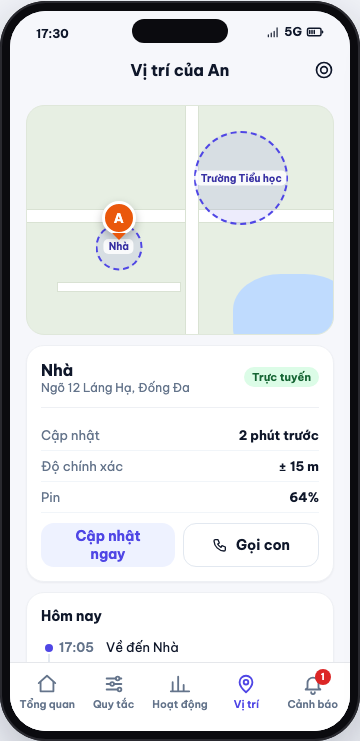
The map shows the current position with battery level, accuracy and the day's movement. Draw safe zones from 100 m to 2 km — Home, School — and choose whether to be told on arrival, on departure, or only inside a time window. Leaving school during class hours raises an alert. So does turning location off: the map then holds the last known position rather than going blank.
Parent app - 06Both devices
Time you can earn
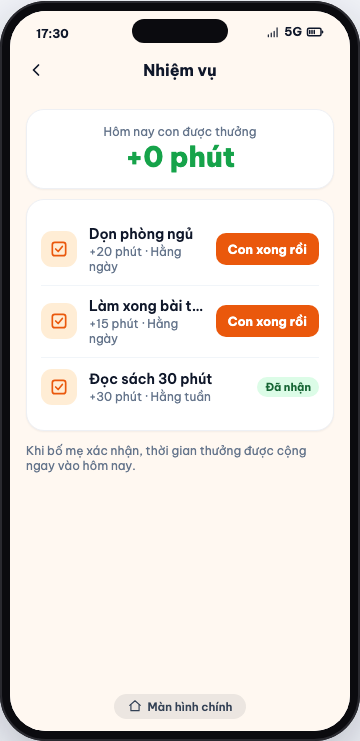
Set tasks and say what each is worth in minutes. The child sees the list on their own phone and marks one done; you get a notification with a Confirm button, and the minutes land in today's allowance the moment you press it. This is the part that keeps the whole thing from being purely a set of restrictions.
Child's device 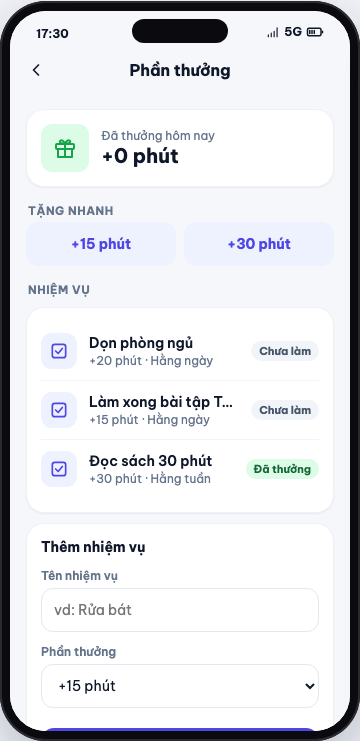
Parent app